
EVORIS Tools
EVORIS Auto Clicker
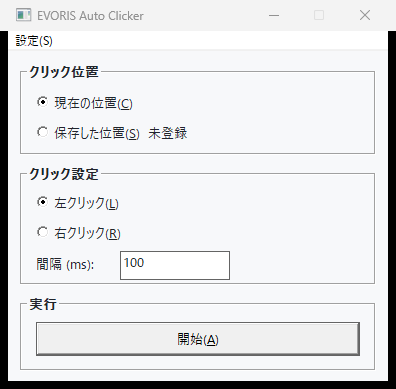
PreviewA small Windows auto-clicking tool for repeatedly clicking the current cursor position or one saved screen position at a chosen interval.
Download
- Operating system
- Windows 11 x64
- Version
- 0.1.0
- Release date
- 2026-09-08
- File size
- 181393 bytes
Overview
EVORIS Auto Clicker is an offline tool that repeatedly sends left or right clicks to the current cursor position or one saved screen position. The interval can be set from 20 to 60,000 milliseconds.
Features
- Click the current cursor position or one position saved with F6
- Switch between left and right clicks
- Choose an interval from 20 to 60,000 milliseconds
- Assign start and stop to F1–F11 keys (excluding F6 and F9) or mouse side button 1 or 2
- Restore settings on the next launch
It does not support repeated keyboard input, multiple saved positions, or background-window input.
How to use it
As this tool has only recently been released, your browser may display a warning that the file is not commonly downloaded.
Extract the downloaded preview ZIP to a folder of your choice and run EvorisAutoClicker.exe. No installer is used.
Starting and stopping
Choose the click position, mouse button, and interval, then use the Start button or the configured start/stop key. The start/stop key can be changed in Settings and defaults to F8. F9 is reserved as a stop-only key and can stop clicking regardless of the configured key.
After starting, the tool waits one second before sending the first click so that you can move the cursor to the target. Start with a long interval and confirm that the intended location is selected.
Using a saved position
Press F6 while stopped to save one cursor position. When Saved position is selected, the cursor moves to that screen coordinate for every click. It does not automatically return to its previous position.
If the display arrangement changes, the position must be saved again as a safety measure.
Updating
When a new version is released, close the app, extract the new ZIP, and replace the executable. Automatic updates are not supported.
Settings and reset
Settings are normally stored at %LOCALAPPDATA%\EVORIS\AutoClicker\settings.ini. To reset the app, close it and delete this file. The next launch will use the defaults.
License
EVORIS Auto Clicker is provided under the MIT License. It permits personal and commercial use, modification, redistribution, and sale. Redistributions must retain the copyright notice and the MIT License notice.
The MIT License applies to the Auto Clicker source code and distribution package. It does not apply to the EVORIS website as a whole, other tools, names, logos, or images. The full license text is included as LICENSE.txt in the ZIP.
Auto Clicker-specific notices
- Automated clicking may cause unintended operations or data changes. Start with a long interval, confirm the target, and create any necessary backups before important operations.
- Use the configured start/stop key to stop clicking. The fixed F9 key can also stop the tool if you are unsure of the current setting. One click already being sent when stopping is requested may still complete.
- The tool runs with standard user privileges, so it may be unable to send input to an app running with administrator privileges.
- Successfully sending click input does not guarantee that the target app will respond.
- Check the rules of the service or game you use it with, and use automation only where it is permitted.
Changelog
- 2026-09-08: released version 0.1.0 as a preview.